
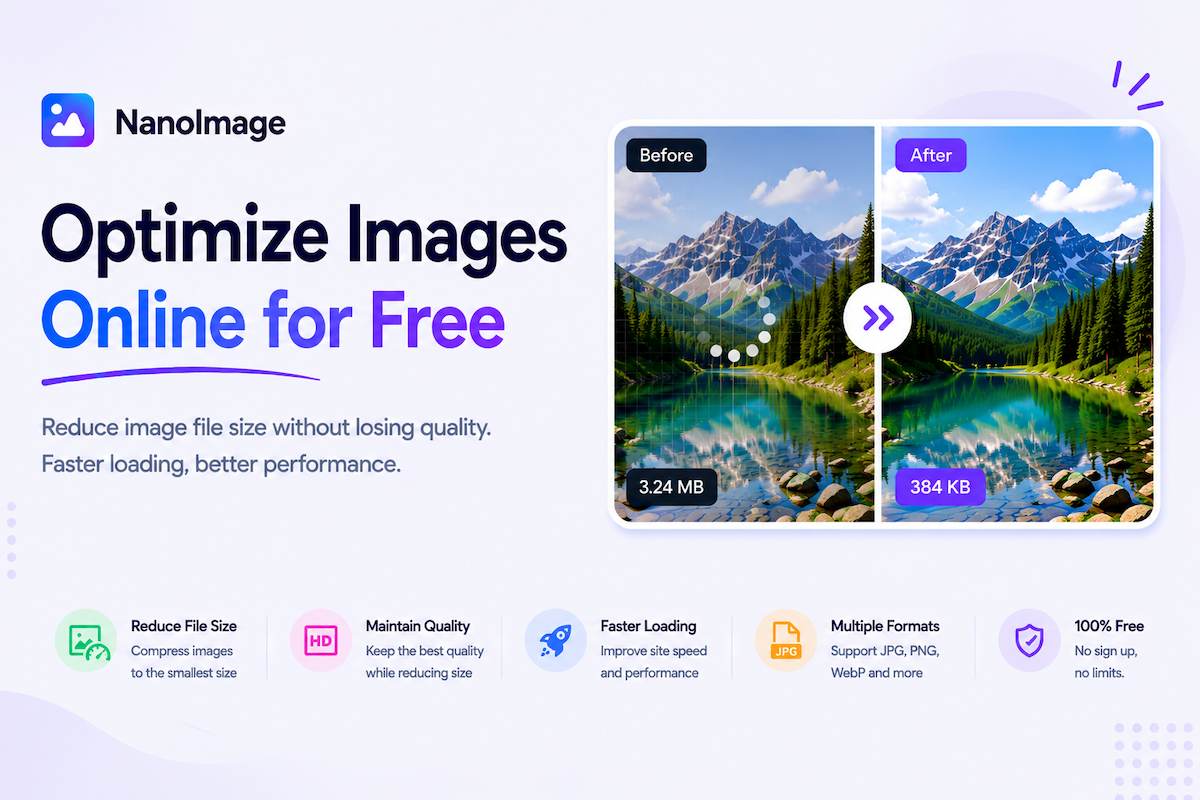
Optimize images online for faster websites, easier sharing, and better quality
Image optimization is one of the simplest ways to make digital work faster and easier. Large image files slow down websites, take longer to upload, fill email attachments, and often fail when a form has a strict file size limit. NanoImage gives you a focused set of free online image optimization tools so you can reduce file size, resize dimensions, batch compress multiple files, or upscale a low-resolution image directly in your browser.
The Optimize Images category is built for everyday tasks: compress a JPG before sending it by email, resize a PNG for a website banner, reduce a WebP file for faster loading, or enlarge a small image so it looks clearer in a presentation. Each tool is designed to be simple enough for quick one-off edits, while still giving you useful controls such as output format, quality, dimensions, and target size.
Use the Compress Image Online tool when your main goal is to make a file smaller. Compression is useful for blog images, product photos, application forms, document uploads, and social media assets. If you need to meet a specific upload limit, use one of the target-size compressors such as 100KB, 200KB, 500KB, or 1MB.
Use Resize Image Online when the image dimensions are the problem. A photo from a phone might be 4000 pixels wide, but a website thumbnail may only need 1200 pixels or less. Resizing can dramatically reduce file size while keeping the image visually clear for its intended use.
Use Batch Compress when you have multiple images to prepare at once. Instead of uploading and downloading files one by one, you can process a group of images together. This is useful for ecommerce sellers, bloggers, designers, students, and anyone preparing many photos for web publishing or sharing.
Use Upscale Image Online when your image is too small and needs to look cleaner at a larger size. Upscaling can help with old screenshots, small product photos, social images, or images that need to fit into a larger layout.
NanoImage is different from many online image tools because optimization happens in your browser whenever possible. Your images are processed locally on your device instead of being uploaded to a server for editing. That makes the workflow faster for many files and helps protect private images, personal documents, product drafts, and client work.
For the best result, choose the tool based on the problem you need to solve. If the file size is too large, compress it. If the width or height is wrong, resize it. If you have many files, batch compress them. If the image is too small, upscale it. You can also combine tools: resize first, then compress; convert to WebP, then compress; or remove EXIF data before publishing.