
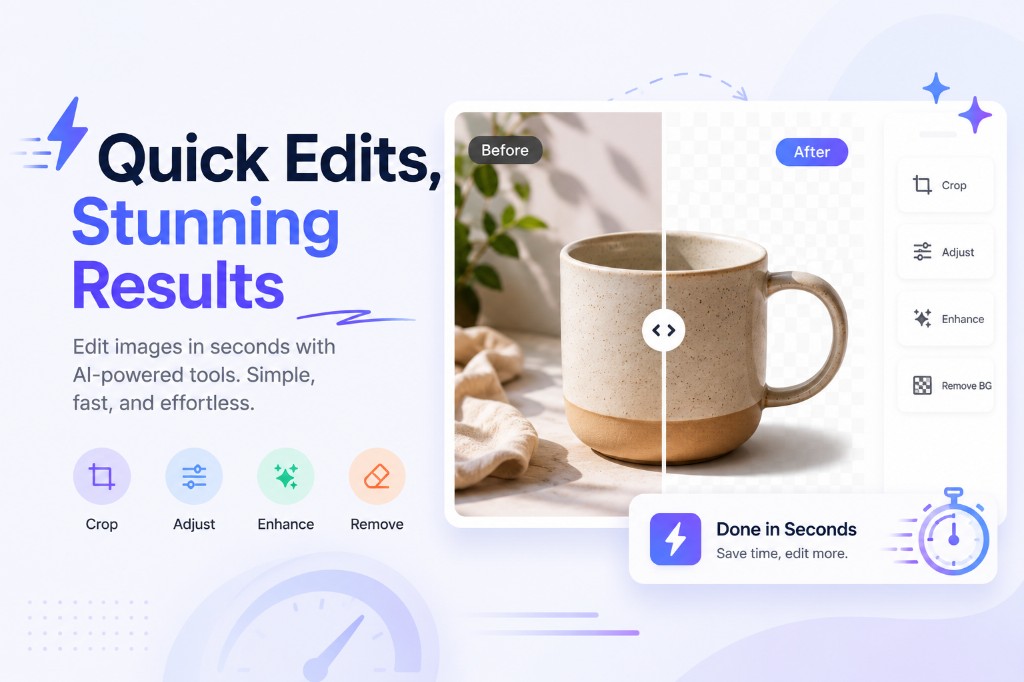
Not every image task needs a full photo editor. Sometimes you just need to crop a screenshot, rotate a sideways photo, flip a selfie, add a short label, or prepare an image for a post. Quick image edits are the small fixes that make a file usable without slowing down your day.
NanoImage is designed around these fast everyday edits. You can open a focused tool, make one change, and download the result without creating an account or learning a complex editor.
This guide explains the most common quick edits and when to use each one.
What counts as a quick image edit?
A quick image edit is a focused adjustment that solves one practical problem. It is not a long retouching session or a layered design project. It is a simple action such as:
Cropping out unwanted edges
Rotating a photo that appears sideways
Flipping or mirroring an image
Adding short text to a visual
Changing a background
Enhancing a low-quality image
Preparing an image for social media, documents, or ecommerce
The best quick-edit tools should be easy to understand, fast to use, and specific to the task.
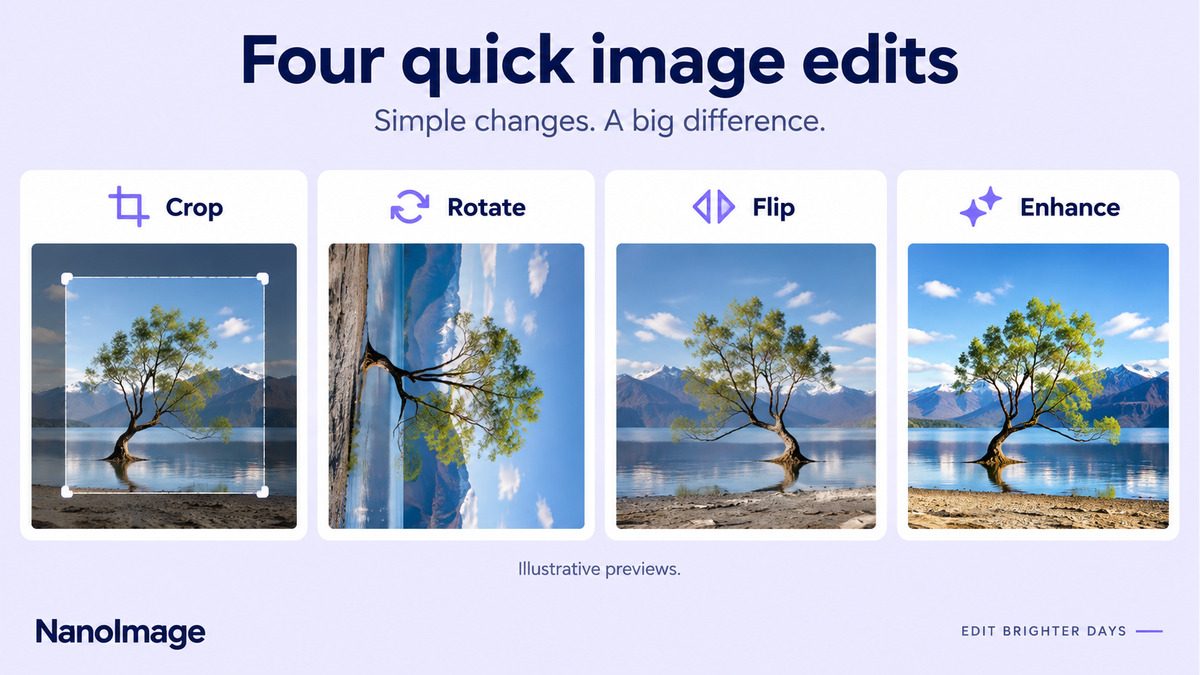
Crop an image to focus the frame
Cropping is often the first edit to make. It removes distractions, changes the composition, and helps the image fit a target layout.
Use cropping when you need to:
Remove empty space around a subject
Cut out accidental background details
Create a square or vertical version for social media
Fit an image into a website card or product layout
Prepare a profile photo or thumbnail
NanoImage's Crop Image tool lets you crop images directly in the browser. For content teams, this is useful when turning one source image into several layout-ready versions.
Rotate a sideways photo
Sideways images are common when photos move between phones, cameras, messaging apps, and content management systems. A photo may look correct on your device but appear rotated after upload.
Use rotation when:
A portrait photo appears horizontal
A scanned document is tilted
A product image faces the wrong direction
A screenshot was captured in the wrong orientation
NanoImage's Rotate Image tool is built for quick orientation fixes. Rotate left, rotate right, preview the result, and download the corrected file.
Flip or mirror an image
Flipping changes the image direction. A horizontal flip creates a mirror effect from left to right. A vertical flip turns the image upside down. This can be useful for selfies, layouts, designs, and creative effects.
Use a flip tool when you want to:
Mirror a selfie or front-camera photo
Change the direction of a product image
Correct backwards visual elements
Create symmetrical design variations
Prepare dataset variations for simple image workflows
NanoImage's Flip Image tool supports horizontal and vertical flipping. It is a focused tool for one job, so you can finish quickly.
Add text when an image needs context
Sometimes an image needs a short label, note, title, number, or callout. This is common for tutorials, social posts, comparison graphics, thumbnails, and internal documentation.
Use text when:
A screenshot needs an instruction label
A product image needs a short note
A blog image needs a title overlay
A meme or social visual needs a caption
A tutorial image needs a numbered step
NanoImage's Add Text tool is useful for quick text overlays without opening a design suite.
Change or clean up a background
Background changes can make a photo look cleaner and more useful. A clean background helps product photos, profile visuals, thumbnails, and simple marketing images feel more polished.
Use background changes when:
The current background is distracting
A product photo needs a cleaner look
A profile image needs a consistent style
You want a visual to match a brand color or layout
Use NanoImage's Change Background tool when a photo needs a simple background update.
Enhance an image before publishing
Some images are useful but not quite ready. They may look dull, soft, or low-resolution. Enhancement can help improve clarity and presentation before sharing or uploading.
Use enhancement when:
A photo looks soft or low quality
A downloaded image needs a clearer export
A social image needs a sharper version
A product or document image needs better readability
NanoImage's Enhance Image tool can help improve image quality quickly.
A quick editing workflow for everyday images
For many tasks, this order works well:
Crop the image to remove distractions.
Rotate if the orientation is wrong.
Flip if the direction needs to change.
Add text if the image needs context.
Enhance if the image looks soft.
Compress the final image if it will be used on the web.
This keeps the workflow simple. You only use the tools you actually need.
When to use quick tools instead of a full editor
A full editor is useful for complex design work, layered files, retouching, and advanced creative projects. But for everyday image tasks, a focused tool is often faster.
Use quick tools when:
You only need one or two edits
You want to avoid opening heavy software
You are working on a shared or temporary device
You need a browser-based workflow
You do not want to create an account
Visit Edit Images to see the full collection of NanoImage editing tools.
FAQ
Can I edit an image online for free?
Yes. NanoImage provides free browser-based tools for common edits such as cropping, rotating, flipping, adding text, changing backgrounds, and enhancing images.
What is the fastest way to fix a sideways photo?
Use a rotate tool. Upload the image, rotate it left or right, preview the result, and download the corrected version.
What is the difference between rotate and flip?
Rotate turns the image around a center point, such as 90 degrees left or right. Flip mirrors the image horizontally or vertically.
Should I compress an image after editing it?
If the image will be used on a website, blog, email, or social platform, compression can help reduce file size after the final edit.
Final takeaway
Quick image edits should feel simple. Crop the frame, rotate the orientation, flip the direction, add context, improve quality, and export the result. NanoImage keeps each task focused so you can get from upload to download quickly.
Start with the full Edit Images collection, or jump directly to Crop Image, Rotate Image, and Flip Image.