
Discord rejects your reaction GIF. An email bounce cites attachment size. A CMS upload bar stalls at 100%. When the format is GIF, the fix is almost always the same: compress the animation until it fits—without wrecking the loop.
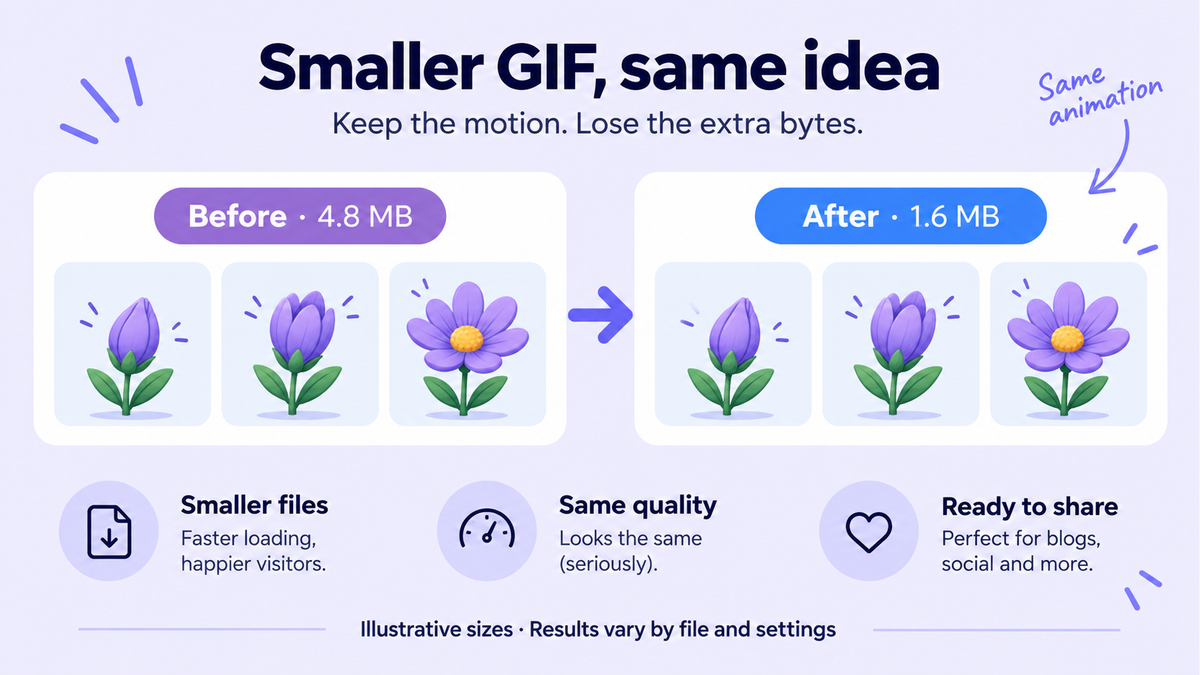
Quick answer: how to compress a GIF
To compress a GIF, reduce colors, frames, or dimensions until the file is under your limit (for example Discord’s upload cap or a 512KB / 5MB target). A local GIF compressor does this in the browser so the file never uploads. Open NanoImage’s GIF Compressor, pick a preset or sliders, preview, and download.
Why GIF files get huge
GIF stores every frame as a palette image. File size scales with frames × palette × resolution:
More frames (smooth 30fps loops, long clips) multiply the payload.
Large canvases (1080p screen recordings turned into GIF) cost far more than a 480px reaction.
Fat palettes (up to 256 colors per frame) keep gradients pretty but bloat bytes.
Little frame-to-frame reuse (busy video) compresses worse than a simple emoji loop.
That is why a five-second screen recording can land at 15–40MB as a GIF even when the same clip is tiny as MP4. Compression is not “make it blurry for fun”—it is choosing which of those three axes to shrink first. If you only remember one mental model: stop paying for pixels and frames the destination will never show clearly in a chat bubble.
How to compress a GIF in your browser (step-by-step)
Open the GIF Compressor — free, no account, processed locally in your browser.
Drop in your `.gif`. You should see the original size and a live preview.
Pick a target preset (Discord, 512KB, 5MB, or custom) or nudge quality, scale, frame skip, and palette manually.
Watch the estimated size. If you are still over the limit, tighten one control at a time (see order below).
Download the compressed GIF. Nothing was uploaded to a server.
Because NanoImage runs in the browser, private memes, unreleased product loops, and work-in-progress UI recordings never leave your machine. You can confirm in DevTools → Network: no image upload requests. That privacy angle matters more for GIFs than for stills—animated captures often include unread Slack sidebars, email subjects, or staging URLs.
Discord and common size targets
Platform caps change, and Discord’s limit depends on your Nitro tier. Treat these as working ranges, then verify in the product UI before you publish:
Discord (typical non-Nitro / Nitro ranges): often discussed around ~8MB for many uploads; Nitro tiers can be higher. NanoImage’s Discord preset targets that common ~8MB wall—if your client still rejects the file, step down to 5MB or lower.
512KB: strict email signatures, some ticket systems, older CMS fields, sticker-like assets.
2–5MB: many marketing CMSs, casual team-chat shares, newsletter tools with medium caps.
8MB+: looser chat uploads and “looks fine on broadband” embeds.
If a host only says “max upload 1MB” without format nuance, assume the GIF must land under that number after compression—not “approximately.” When in doubt, aim 10–15% below the stated cap so encoding overhead does not push you over. Re-open the file’s properties after download; some tools report an estimate that differs slightly from the bytes written to disk.
Which settings to try first
Work in this order. Each step usually saves more bytes than the next:
Resize (scale down) — Dropping 1080p → 640px (or 480px for reactions) is the biggest win with the least “GIF looks broken” risk. Chat GIFs rarely need cinema resolution.
Frame skip / lower frame rate — Keeping every other frame (or capping around 10–15fps) often halves size on video-like GIFs. Fine for reactions; be gentler on UI demos where motion must stay readable.
Palette / quality — Fewer colors flatten gradients and banding appears. Use this after resize/frames when you still need another 20–40%.
Trim duration — If the tool or a prior edit can shorten the loop, a 2-second punchline beats an 8-second meandering clip every time.
Rule of thumb: resize → frames → palette. Jumping straight to maximum quality reduction on a still-huge canvas fights the format. If you must ship tonight and only have one slider pass, pick a preset (512KB or Discord) and let the compressor balance those levers for you—then fine-tune only if the preview looks too soft.
Create vs compress: when to use GIF Maker first
Compressing assumes you already have a `.gif`. If you are starting from PNGs, JPGs, or a short sequence of stills:
Build the animation in GIF Maker with a modest canvas and sane frame duration.
Export, then run the result through GIF Compressor to hit the hard cap.
Creating “too big” on purpose and only crushing quality at the end wastes time. Design for the limit: fewer frames, smaller width, then a light compress pass for the last kilobytes. Screen recordings that “must stay GIF” should be cropped to the active window before either tool—letterboxed desktops are pure dead weight.
FAQ
Will compressing a GIF always look worse?
Not if you resize first. Most Discord-sized reactions look fine at 400–600px wide. Ugly results usually come from crushing the palette on a still-huge canvas.
Does compression break looping?
A proper GIF compressor keeps the loop flag. If your download plays once, re-check the tool’s loop setting or re-export; NanoImage’s compressor preserves typical forever-loop behavior unless you change it upstream in the maker.
Should I switch to animated WebP instead?
When the destination allows it, animated WebP (or MP4/WebM) is often smaller at similar quality. Many chat apps and older email clients still expect GIF. Compress the GIF when the channel demands GIF; use a modern format when you control the page.
Is a local compressor safer than upload sites?
Yes for private content. Upload-based converters send the entire animation to someone else’s disk. A browser-local tool keeps pixels on your device.
Can I compress without losing the transparent look?
GIF transparency is palette-based. Heavy palette cuts can introduce fringing. Prefer resize/frame cuts before aggressive color reduction on transparent stickers.
Compress your GIF locally
Ready to hit the limit? Open the GIF Compressor, choose a Discord / 512KB / 5MB preset, and download a smaller loop—processed on your device. Building from stills? Start with GIF Maker, then compress.