
Have you ever tried to copy a reference photo onto paper, canvas, or a wall, only to find that the proportions drift as you draw? That is exactly the problem a Grid Maker can solve.
A Grid Maker, also called a drawing grid maker or drawing grid generator, is an online tool that adds regular grid lines to a reference image or creates a blank printable grid. For drawing, copying, portraits, proportion practice, illustration layout, mural scaling, and classroom teaching, grids are simple but very useful.
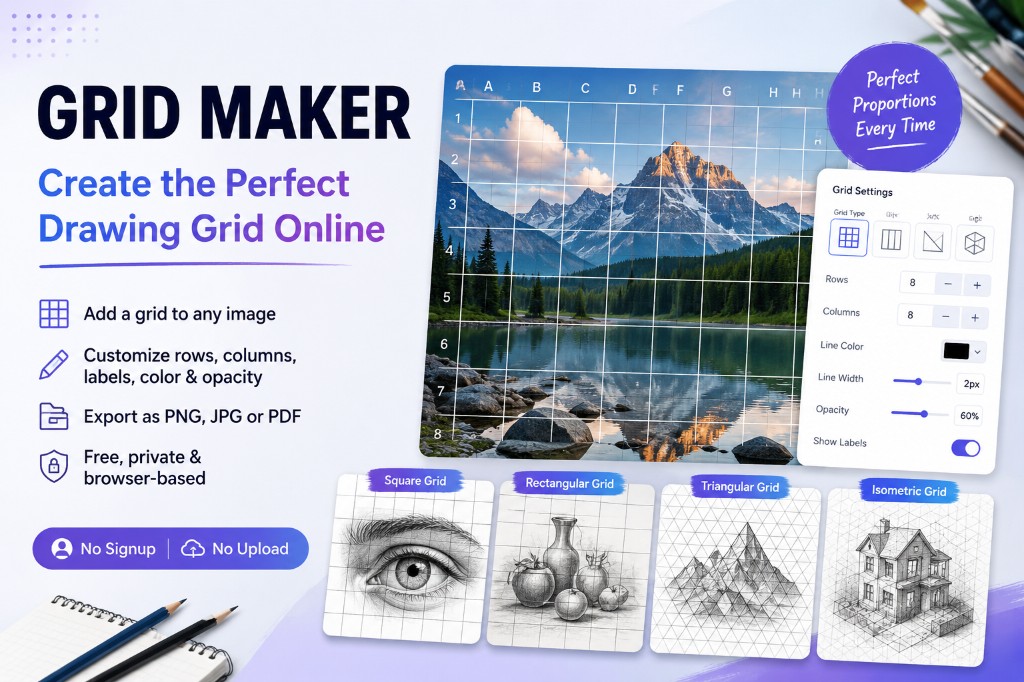
NanoImage Grid Maker is a free online tool. You can upload a reference image, add a square, rectangular, triangular, or isometric grid, adjust rows, columns, line color, opacity, and labels, then export the result as PNG, JPG, or PDF. Everything runs in your browser, with no signup and no image upload.
What is a Grid Maker?
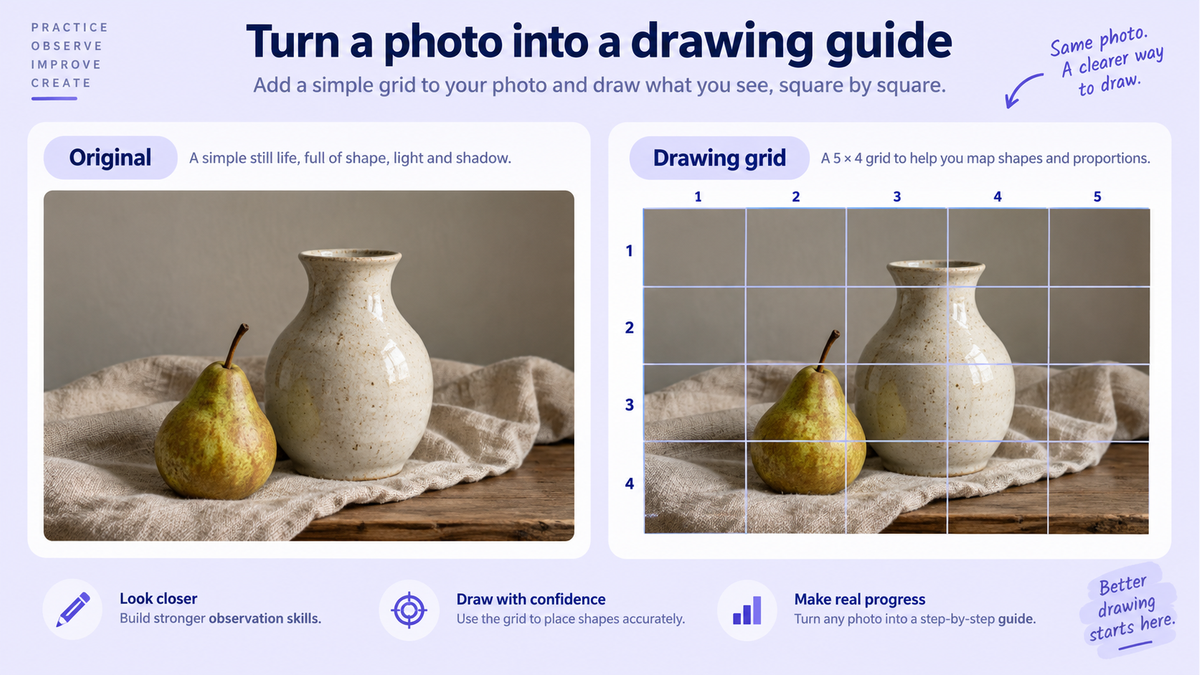
A Grid Maker is a tool for creating grids. The most common use is adding a grid overlay to a reference image so you can observe and copy the image one small cell at a time.
In traditional drawing, artists often draw a grid on the reference image and then draw a matching grid on paper or canvas. By studying each small square, it becomes easier to keep shapes, values, and proportions accurate.
An online Grid Maker makes this process faster. You do not need to draw lines by hand or open complex design software. Open the page, upload an image, choose your grid settings, and download a clean drawing reference.
Why use a grid for drawing?
One of the most common drawing problems is inaccurate proportion. In a portrait, a small shift in the eyes, nose, mouth, or face outline can change the whole likeness. Buildings, animals, landscapes, and complex objects can also become distorted.
The grid method works because it breaks a complex image into smaller areas. Instead of judging the whole picture at once, you focus on what happens inside each cell.
Using a drawing grid can help you:
Observe proportions more accurately
Keep facial features aligned
Scale a small image onto a larger canvas
Break down complex compositions
Train observation skills
Reduce overall drift when copying
Prepare consistent classroom exercises
That is why Grid Maker is useful for beginners, art students, teachers, illustrators, portrait artists, and mural painters.
What can NanoImage Grid Maker do?
NanoImage Grid Maker has two main workflows.
The first is adding a grid to an image. Upload a reference photo and place a drawing grid on top. This is useful for portraits, people, animals, landscapes, still life, product sketches, comic panels, and mural references.
The second is creating a blank printable grid. If you do not want to upload an image, you can generate a blank grid for practice sheets, classroom handouts, composition drafts, isometric drawing, or geometric pattern design.
Key features include:
Add a grid to a reference image
Create blank printable grids
Square, rectangular, triangular, and isometric grids
Custom rows and columns
Adjustable line color, width, and opacity
Letter and number labels
PNG, JPG, and PDF export
Local browser processing
No signup and no upload
How to add a drawing grid to an image
Using an online Grid Maker is straightforward.
1. Upload a reference image
Choose the image you want to copy or scale. It can be a portrait, landscape, pet photo, illustration sketch, product reference, or any image you want to draw.
2. Choose a grid type
Square grids are the most common choice for drawing practice, especially for portraits, still life, and proportion training.
If your image is wide or tall, use a rectangular grid. For geometric patterns, technical drawings, or isometric sketches, use triangular or isometric grids.
3. Adjust rows and columns
Rows and columns control grid detail. Fewer cells are cleaner and better for quick sketches. More cells are more precise and better for detailed portraits or complex images.
Beginners can start with 4×4, 5×5, or 8×8. Complex portraits or large works may need more cells.
4. Set line style
Adjust grid color, thickness, and opacity. Light or semi-transparent lines avoid covering image details. Darker lines work well for printing and classroom display.
5. Add labels
Letters and numbers help you identify each cell, such as A1, B2, or C3. When your reference and drawing surface share the same labels, it is easier to copy cell by cell.
6. Export or print
When the grid is ready, export it as PNG, JPG, or PDF. You can print it directly or import it into Procreate, Photoshop, Illustrator, Clip Studio Paint, or another drawing app.
Common Grid Maker use cases
Portrait drawing
Portraits are sensitive to proportion. A portrait grid maker helps you compare feature placement, angles, spacing, and face structure more accurately.
Copying practice
For beginners, grids reduce the difficulty of copying. Focus on the line direction and shape inside one small cell, then build the full image gradually.
Murals and large-scale artwork
If you want to enlarge a small image onto a wall, poster, or large canvas, the grid method is practical. Use the same proportions on the reference and target surface, then scale the image cell by cell.
Classroom teaching
Teachers can use Grid Maker to prepare drawing exercises, proportion worksheets, and blank grid paper. Students can practice observation and copying with numbered cells.
Illustration and composition
Illustrators can use grids to check composition balance, character placement, background perspective, and visual weight. Isometric grids are also useful for 3D-style illustrations, game assets, and icon sketches.
Printable grid paper
If you only need a blank grid, the printable grid maker can generate practice paper for sketching, geometry, isometric drawing, notes, and planning.
Square, rectangular, triangular, and isometric grids
Square grid
Square grids are the classic drawing grid. They work for portraits, still life, landscapes, figures, and most copying workflows.
Rectangular grid
Rectangular grids are useful for wide or tall images. If your reference is not square, a rectangular grid can match the image ratio more naturally.
Triangular grid
Triangular grids are useful for geometric patterns, decorative design, abstract composition, and technical drawing. They can also help you observe diagonal angles.
Isometric grid
Isometric grids are common in 3D-style drawing, pixel art, architecture sketches, game assets, icons, and technical illustrations.
Practical tips for using a Grid Maker
Start with fewer cells
If you are a beginner, do not start with an overly dense grid. Too many lines can distract you. Try 4×4 or 5×5 first, then increase detail later.
Keep image and canvas ratios aligned
If you are transferring an image to paper or canvas, the reference grid and target grid should use the same proportions. That keeps each cell aligned.
Use labels to avoid mistakes
When there are many rows and columns, it is easy to lose your place. Labels help you quickly find the correct cell.
Check line color before printing
For print, use enough contrast and avoid opacity that is too low. Clear grid lines are easier to use on paper.
Observe relationships, not only outlines
A grid is not just for mechanical copying. It helps train observation. Look at where each line enters and exits a cell, how far it is from the edges, and how shapes relate to each other.
Why choose an online Grid Maker?
Compared with drawing grids by hand, an online Grid Maker is faster, more accurate, and easier to adjust. You can change rows, columns, line color, opacity, and labels without redrawing the page.
Compared with professional design software, an online tool is lighter. You do not need Photoshop, Illustrator, or a complex workflow. Open the browser and start.
For personal photos, client references, or student work, local browser processing also adds privacy. Your image does not need to be uploaded.
Start creating your drawing grid
Whether you are practicing portraits, copying a reference, enlarging a mural, or creating classroom worksheets, NanoImage Grid Maker helps you create clean, customizable, printable drawing grids quickly.
Upload a reference image, add grid lines and labels, or create a blank grid and export it as PNG, JPG, or PDF.
Try NanoImage Grid Maker and create your free online drawing grid.