
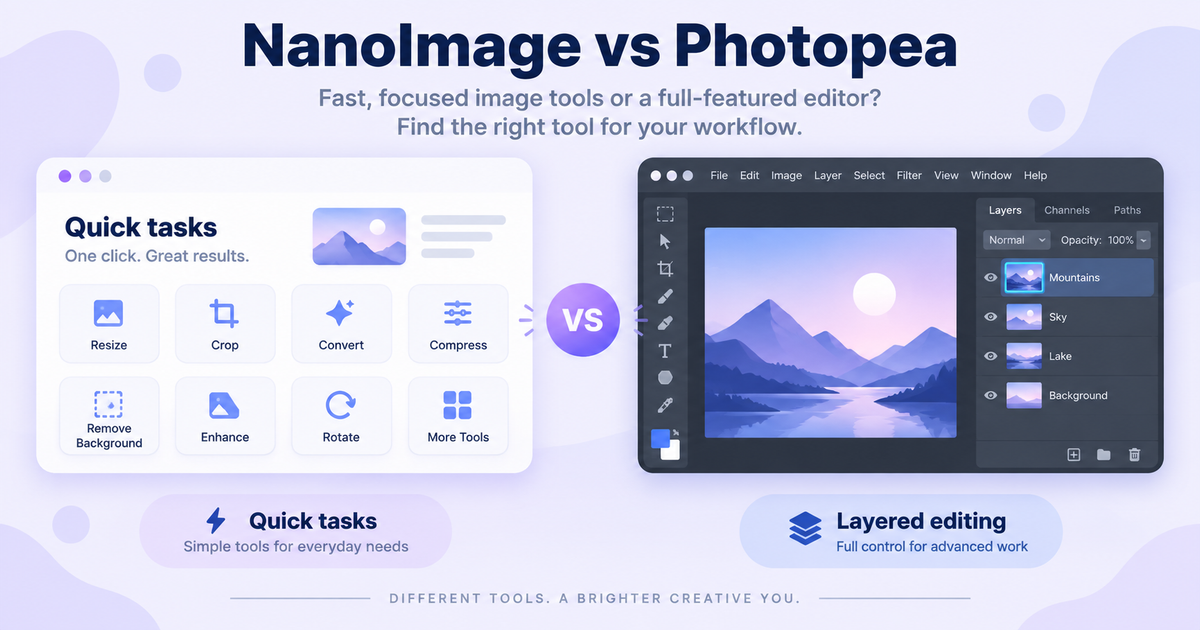
# NanoImage vs Photopea: Quick Tools vs Full Editor (2026)
This comparison is a little unusual. Most "tool A vs tool B" articles are about products that compete for the same user with the same need. NanoImage and Photopea don't, really. Photopea is a Photoshop replacement. NanoImage is a set of fifteen small utilities.
But people genuinely ask "should I use Photopea or NanoImage?" — usually because they're not sure which one fits the job. This article is a decision guide.
Disclosure: NanoImage is our project. We respect what Photopea has built.
---
TL;DR
If you need to edit an image (paint, mask, retouch, layers, open a PSD): Photopea
If you need to transform an image (compress, resize, crop, convert, watermark): NanoImage
These are different verbs. Pick the tool that matches the verb.
---
What Each Tool Actually Is
Photopea
A browser-based clone of Adobe Photoshop. Opens PSD, AI, EPS, SVG, RAW, XCF. Has layers, masks, brushes, paths, channels, pen tool, healing tools, curves, smart objects. Free with ads; $5/month removes them.
Built and maintained by one developer (Ivan Kuckir) since 2013. Learning curve: roughly the same as Photoshop's.
NanoImage
Fifteen single-purpose image tools, all running on the Canvas API. Each tool does one thing in 1–3 clicks. No layer panel, no brush tool.
The 15 tools: Compress, Compress to 100KB, Resize, Crop, Rotate, Flip, Invert, Black & White, Blur, Add Border, Add Watermark, Convert to JPG, Meme Generator, Split Image, Merge Images.
---
Quick Comparison
| NanoImage | Photopea | |
|---|---|---|
| Category | Transform / utility | Full editor |
| Time to first result | ~5 seconds | 1–3 minutes |
| Learning curve | Negligible | Steep (Photoshop-level) |
| Layers, masks, brushes | No | Yes |
| PSD support | No | Yes (excellent) |
| Batch processing | Yes (up to 10) | Yes (via Actions, requires scripting) |
| Mobile usable? | Yes | Awkward |
| Free tier | Unlimited, no ads | With ads / $5/mo no ads |
| Files stay on device? | Yes | Yes |
---
The Decision Tree
Use Photopea when:
You need to open a PSD
You need pixel editing — retouch, paint, mask, healing
Multi-layer compositing
Selection tools (magic wand, lasso, pen)
Color grading — curves, levels, color balance
The job would take 5–30 minutes in Photoshop
Use NanoImage when:
You need to compress, resize, crop, or convert
Add a watermark or border
Make a meme
Rotate, flip, or invert
Batch any of the above across multiple files
The job would take less than a minute
---
The Test: How Long Would This Take?
| Task | Photopea | NanoImage |
|---|---|---|
| Compress one screenshot for Slack | 30s | 5s |
| Convert PNG to JPG | 30s | 5s |
| Resize for Instagram | 45s | 10s |
| Crop to 16:9 | 30s | 10s |
| Add watermark to 10 images | 5–15min | 2min (batch) |
| Remove a person from a photo | 1–5min | Not possible |
| Open a PSD and export one layer | 1min | Not possible |
The pattern: below 1 minute of work → NanoImage is 5–10x faster. 5+ minutes of editing → Photopea is the only choice.
---
The Honest Verdict
If you do real photo editing — retouching, compositing, PSD files — Photopea is one of the best free tools on the web.
If you do everyday image utility work — compressing for email, resizing for social, converting formats — NanoImage is built for that exact category.
Photopea is what you reach for when you sit down to *make something*. NanoImage is what you reach for when you need to *do a small thing quickly and get back to what you were doing*.