
Images are one of the easiest ways to slow down a website. They are also one of the easiest things to fix.
NanoImage started as a simple browser-based image toolset. Now, NanoImage CLI brings the same practical image workflows to the terminal.
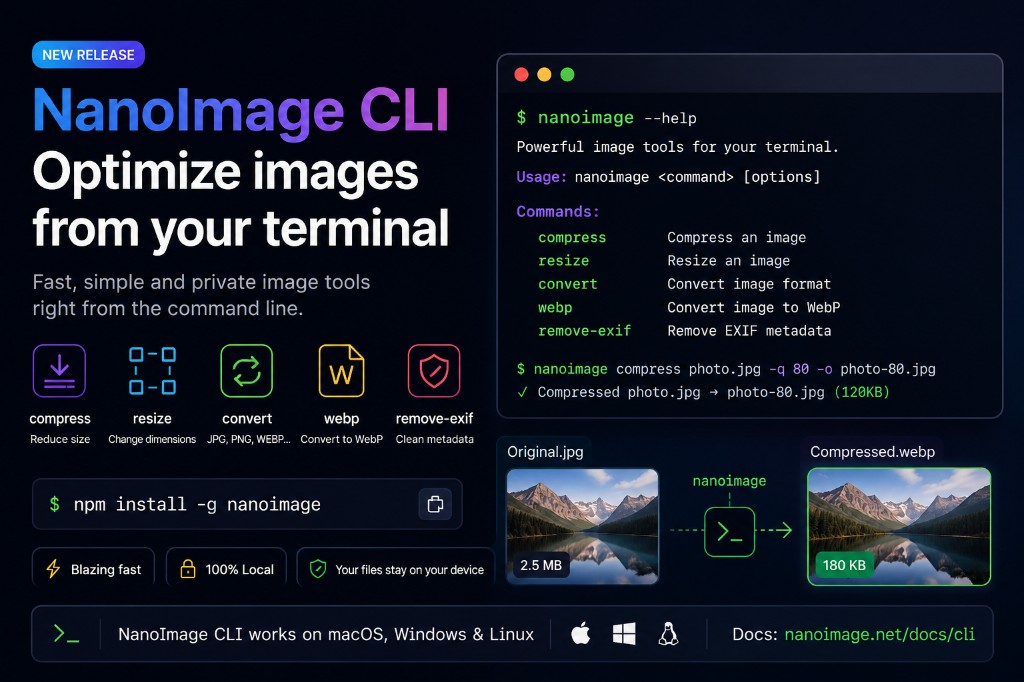
With NanoImage CLI, you can compress, resize, convert, convert to WebP, and remove EXIF metadata from local image files with simple commands.
bash
nanoimage compress ./images --quality 75 --output ./compressed
It is built for developers, content teams, indie hackers, SEO teams, and anyone who wants to optimize images without opening a browser.
Why We Built NanoImage CLI
The NanoImage web tools are great when you want to quickly process one image in your browser.
But some workflows are better from the command line:
Optimizing a folder of blog images
Preparing product images for a website
Converting assets to WebP before deployment
Removing EXIF metadata before publishing
Running image optimization in CI/CD
Repeating the same settings across many files
A CLI makes those workflows faster and easier to automate.
Instead of opening each image manually, you can run one command and process an entire folder.
What You Can Do with NanoImage CLI
The first release focuses on five practical commands.
1. Compress images
Reduce file size while keeping a good balance between quality and size.
bash
nanoimage compress photo.jpg --quality 75 --output ./compressed
You can also compress a whole folder:
bash
nanoimage compress ./images --quality 75 --output ./compressed
2. Resize images
Resize images by width, height, or fit mode.
bash
nanoimage resize hero.jpg --width 1600 --output ./resized
For website images, this is useful when original photos are much larger than the display size.
3. Convert image formats
Convert between common image formats such as JPG, PNG, WebP, and AVIF.
bash
nanoimage convert logo.png --to jpg --background white --output ./converted
This is helpful when you need a specific format for a website, email, CMS, or upload form.
4. Convert to WebP
WebP is a common choice for smaller web-ready images.
NanoImage CLI includes a shortcut command for WebP conversion:
bash
nanoimage webp hero.jpg --quality 80 --output ./webp
You can also convert an entire folder:
bash
nanoimage webp ./public/images --quality 82 --output ./public/images-webp
5. Remove EXIF metadata
Images can contain hidden metadata such as camera model, date, device settings, and sometimes location information.
NanoImage CLI can remove common EXIF metadata before publishing or sharing images.
bash
nanoimage remove-exif photo.jpg --output ./clean
For folders:
bash
nanoimage remove-exif ./uploads --output ./uploads-clean
Install NanoImage CLI
Install globally with npm:
bash
npm install -g nanoimage
Or run it with npx:
bash
npx nanoimage --help
Requires Node.js 18 or later.
Quick Start
Here are the five most useful commands:
bash
nanoimage compress photo.jpg --quality 75 --output ./compressed
bash
nanoimage resize photo.jpg --width 1200 --output ./resizedbash
nanoimage convert photo.png --to jpg --output ./convertedbash
nanoimage webp photo.jpg --quality 80 --output ./webpbash
nanoimage remove-exif photo.jpg --output ./cleanBatch Image Optimization
One of the best reasons to use a CLI is batch processing.
For example, you can compress every image in a folder:
bash
nanoimage compress ./images --quality 75 --output ./compressed
Resize blog images to a practical width:
bash
nanoimage resize ./blog-images --width 1200 --output ./blog-images-resized
Convert a folder to WebP:
bash
nanoimage webp ./images --quality 80 --output ./webp
Use It in CI/CD
NanoImage CLI can be used in build scripts.
Example package.json script:
json
{
  "scripts": {
    "optimize-images": "nanoimage compress ./public/images --quality 75 --output ./public/images-optimized"
  }
}
You can also run it in GitHub Actions:
yaml
name: Optimize Images

on: [push]

jobs:
  optimize:
    runs-on: ubuntu-latest
    steps:
      - uses: actions/checkout@v4
      - uses: actions/setup-node@v4
        with:
          node-version: 20
      - run: npm install -g nanoimage
      - run: nanoimage compress ./public/images --quality 75 --output ./public/images-optimized
This makes image optimization part of your normal development workflow.
JSON Output for Automation
NanoImage CLI supports JSON output for scripts and automation.
bash
nanoimage compress photo.jpg --quality 75 --json
Example output:
json
[
  {
    "input": "photo.jpg",
    "output": "photo.jpg",
    "inputSize": 2457600,
    "outputSize": 524288
  }
]
This is useful for logs, CI/CD, custom build systems, and future AI agent workflows.
Local Image Processing
NanoImage CLI is designed for local processing.
That means your files are processed on your machine from the terminal. You do not need to upload images to a website just to compress, resize, convert, or clean them.
This is especially useful for:
Website assets
Product photos
Blog images
Personal photos
Images with private metadata
Client projects
When Should You Use the Web App Instead?
Use the NanoImage web app when you want a visual interface, preview, and quick manual editing.
Use NanoImage CLI when you want automation, batch processing, scripts, and repeatable settings.
A simple rule:
text
One image, visual editing -> use the web app
Many images, repeatable workflow -> use the CLI
What Comes Next
The first NanoImage CLI release focuses on five stable commands:
text
compress
resize
convert
webp
remove-exif
Next, we may explore:
Image to PDF
Rotate and flip
Watermarking
GitHub Action wrapper
More batch reports
MCP server for AI agents
The goal is not to make the CLI complicated. The goal is to keep it fast, practical, and easy to automate.
Try NanoImage CLI
Install it with npm:
bash
npm install -g nanoimage
Read the documentation:
text
https://nanoimage.net/docs/cli
CLI landing page:
text
https://nanoimage.net/cli
NanoImage CLI gives developers a simple way to optimize images locally, from the terminal, with commands that are easy to understand and easy to automate.